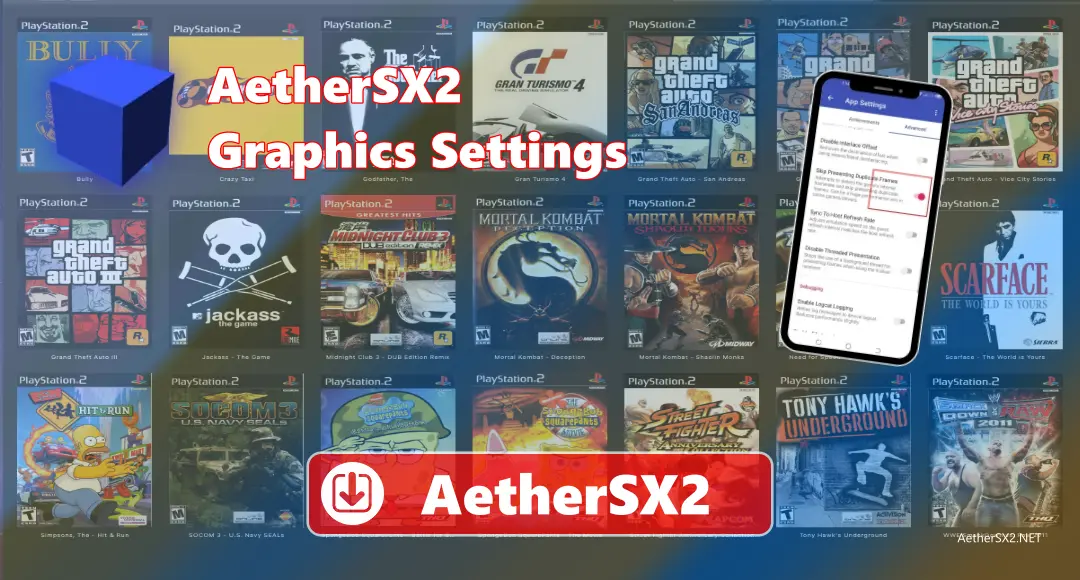
AetherSX2 Graphics Settings control how PlayStation 2 games look and run on your device. Graphics settings include resolution, graphics mode (Vulkan or OpenGL), texture quality, and frame limit, which affect both the picture quality and game speed. Higher settings make the game look clearer and sharper, but it needs a powerful device. Lower settings can make the game run smoother on weaker phones, but the graphics may look less detailed. So by learning these settings, you can adjust the emulator to match your device and the game you are playing.
How Graphics Settings Work
AetherSX2 is an app that lets you play PlayStation 2 games on Android devices. It runs the PS2 system inside your device, so games can run without the real console. The graphics settings in AetherSX2 control how the game looks and how smoothly it runs. These settings change things like screen resolution, graphics mode, texture quality, and frame rate. If you increase the settings, the game may look better, but you need a stronger device. If you lower them, the game may run faster but look less detailed.
Why Graphics Settings Are Important for Performance
Graphics settings are important because they directly affect how smoothly a game runs on your device. In AetherSX2, higher graphics settings make games look clearer and more detailed, but they also use more CPU and GPU power. If your device is not strong enough, this can cause lag, frame drops, or overheating. Lower graphics settings reduce the load on your device, which helps games run faster and more smoothly.
Best Graphics Settings for Smooth Gameplay
Best Renderer: Vulkan (for most phones)
For most Android phones, Vulkan is the best renderer in AetherSX2. It gives more FPS and better graphics. It smartly uses your phone’s GPU, so games run smoother. If Vulkan does not work well on your phone, you can try OpenGL instead. The table below helps to understand it better:-
| Setting | Recommended Option | Performance Effect | Visual Quality |
| Renderer | Vulkan | Higher FPS | Better graphics |
| Resolution | 2x – 3x | Medium load | Clear image |
| FXAA | Off | More FPS | Sharper screen |
| GPU H*cks | On | Boosts speed | No major change |
| Frame Skip | Off | Stable gameplay | Smooth motion |
Resolution Scaling
The resolution scaling controls how clear the game looks. Higher resolution makes the image clearer, but it also lowers FPS. If you have a low-end phone, use 1x for smooth gameplay. Mid-range phones can use 2x or 3x for a good balance. High-end phones can use 4x or more. If your game starts lagging, lower the resolution first.
Resolution scaling decides how sharp your game looks.
Recommended Setup
If you see lag, lower the resolution first.
Device-Based Presets
Device-Based Presets are settings based on your phone’s specifications. They help you choose the right graphics and performance options without having to change everything manually. Low-end, mid-range, and high-end phones need different settings to run games smoothly.
Low-End Devices
Mid-Range Devices
High-End Devices
Texture Filtering and Mipmapping
Texture Filtering and Mipmapping are graphics settings that control how game textures look on the screen. Texture filtering changes how clear and smooth surfaces appear, especially when viewed from different angles. Mipmapping improves the look of objects that are far away and helps reduce flickering. These settings affect both visual quality and performance, so they help balance how good the game looks and how smoothly it runs.
Texture Filtering
This setting controls how textures look.
For better performance, use bilinear.
For better visuals, use trilinear.
Mipmapping
Mipmapping helps improve distant textures.
Set it to Auto or Full for best results.
Anti-Aliasing and Shader Effects
Anti-Aliasing and Shader Effects are graphics features that improve how the game looks. Anti-aliasing helps smooth rough and sharp edges, so objects look softer and more natural. Shader effects add extra visual effects like colour changes, lighting improvements, or screen filters. These options can make the game look better, but they also use more power and may reduce performance on weaker phones.
FXAA
FXAA smooths rough edges.
Turn it off if you want sharp visuals and more FPS.
Screen Shaders
Avoid using them unless your phone is powerful.
Aspect Ratio and Widescreen
Aspect Ratio and Widescreen settings control how the game fits on your phone screen. The aspect ratio decides the shape of the display, such as the original 4:3 size used by PS2 games or the wider 16:9 screen used on modern phones. Widescreen mode makes the game fill more of your screen, but sometimes it can stretch the image. These settings help adjust how the game looks so it fits your screen properly.
16:9 may stretch the image.
To fix stretching, enable the widescreen patch.
It works only in supported games.
Hardware H*cks Settings
Hardware h*cks help the emulator run faster. GPU Palette Conversion can increase FPS and is safe to keep on. If you disable Hardware Readbacks, it makes the GPU faster, so the game runs smoother, but sometimes you could face graphics problems. Skip Duplicate Frames helps remove small stutters and makes gameplay feel smoother.
GPU Palette Conversion
Disable Hardware Readbacks
Skip Duplicate Frames
Frame Rate Settings
Frame Rate Settings control how smooth and fast your game runs. Frame Limit keeps the game speed steady, and for most PS2 games, setting it to 60 FPS gives smooth and normal gameplay. It helps the game run at the right speed, not too fast and not too slow. Frame skipping can make the game faster by skipping some frames when there is lag, but the game may not look smooth. Use frame skipping only if the game is very slow and hard to play.
Frame Limit
Frame Skipping
Extra Graphics Options
Extra Graphics Options are additional settings that change how the game looks and runs. These options can improve visuals, reduce small stutters, or make loading smoother. Some settings focus on better image quality, and others help improve performance. These features give you more control over graphics so you can adjust the game based on your phone’s power and your personal preference.
Texture Preloading
Asynchronous Texture Loading
Patch Codes
Performance Tips for Smooth Gameplay
To get smooth gameplay, use the Vulkan renderer if your phone supports it because it gives better speed. Lower the resolution if you see FPS drops or lag. Keep GPU h*cks turned on to improve performance. Close other apps running in the background to free up RAM. Turn on your phone’s performance mode. Also, keep the emulator updated to the latest version for better speed and fewer problems.
Common Problems and Solutions
Some additional Problems user face while using AetherSX2. These problems can include lag, low FPS, black screens, graphic glitches, or game crashes. There are some problem with helps you understand why these issues happen and what settings or adjustments are usually related to them.